Best Free Mobile Video Editor Apps in 2026: Instagram Edits vs YouTube Create
Want to create professional-looking Instagram Reels, YouTube Shorts, travel videos or social media content directly from your smartphone? You don’t necessarily need expensive video editing software or a powerful computer. In 2026, mobile video editing has become easier with powerful free applications designed for content creators.
Two interesting options worth exploring are Edits by Instagram and YouTube Create. Both apps provide editing tools, creative effects, music options and features that help beginners produce engaging videos without learning complicated editing software.
But which app should you choose? What are their special features? Can beginners use them? Do they offer templates and AI-powered editing tools?
In this guide, let’s explore Instagram Edits and YouTube Create, understand how to use them step by step, compare their features and find out which one is suitable for your content creation needs.
1. Instagram Edits – Video Editor by Instagram
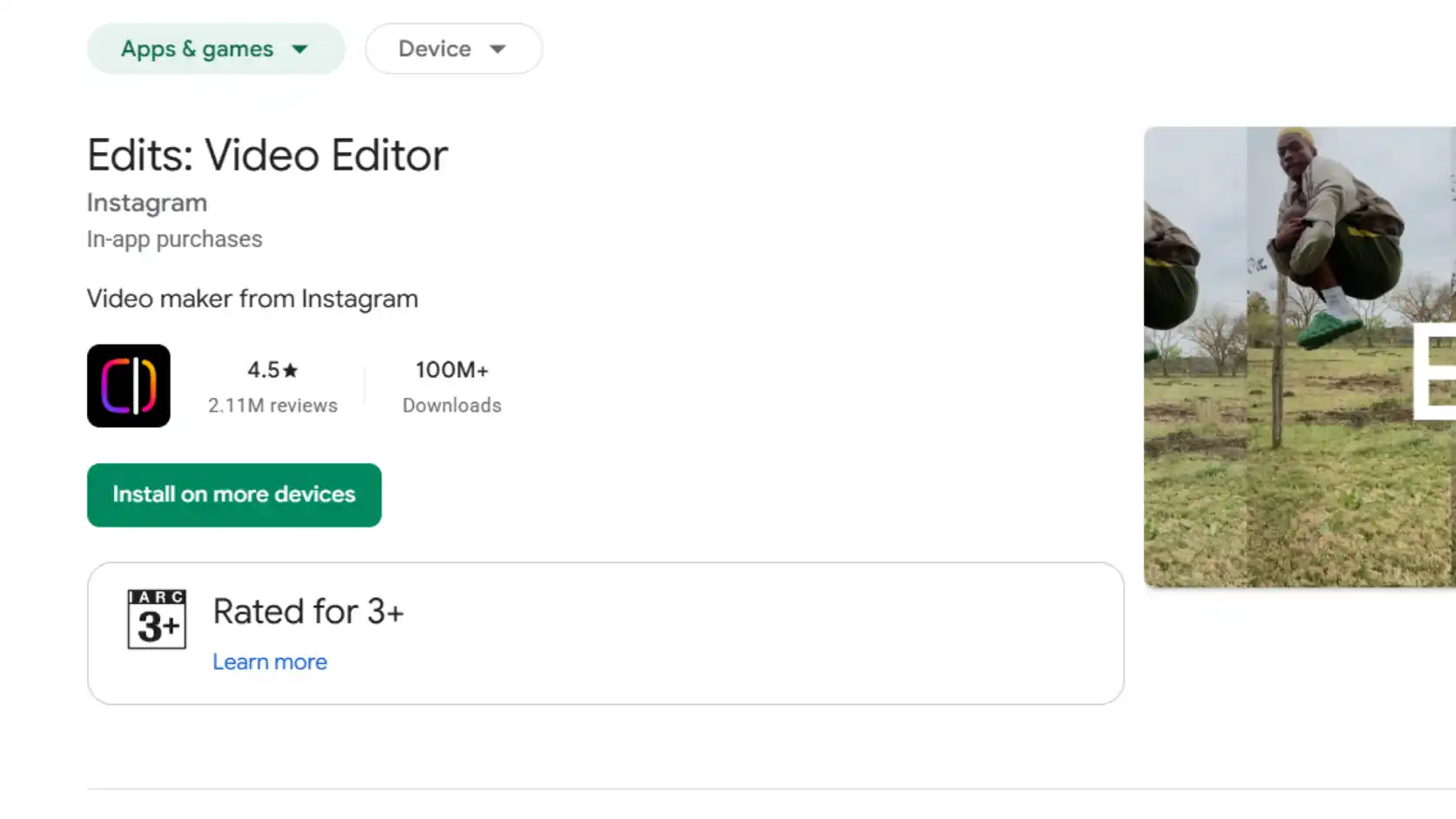
Instagram Edits is a dedicated mobile video editing application developed by Instagram, part of Meta. It is designed to help creators manage their video creation process, from recording and editing to publishing and understanding content performance.
Unlike a basic video editor, Edits brings several creator-focused tools together in one application. You can record videos, arrange clips, add animated text, create captions, use effects, work with templates and export your finished videos.
One of its interesting advantages is its connection with Instagram. Creators can work with Instagram content and access insights related to Reels shared through the app.
Instagram Edits App – Download
Developer: Instagram / Meta
Platform: Android and iOS
Cost: Free to download
Best for: Instagram Reels, short-form videos, influencers, social media managers and content creators.
What Makes Instagram Edits Different from Other Video Editors?
Many mobile editing applications focus mainly on trimming clips, adding transitions and applying filters. Instagram Edits goes further by combining video editing with tools that support the complete Reels creation workflow.
- Instagram integration: Connect your editing workflow with Instagram and share your finished Reels directly.
- Creator insights: Access performance information for Reels shared from Edits, including metrics such as skip rate.
- Multi-track timeline: Arrange video clips, audio, captions, images and other elements with greater control.
- Teleprompter: Read your prepared script while recording videos.
- Creative effects: Apply visual effects, filters, transitions and background-related effects.
- Templates: Start editing using ready-made creative structures and music-based templates.
- Watermark-free exports: Export your videos without an Edits-added watermark.
- Project management: Keep your ideas, drafts and video projects organised.
Important Features of Instagram Edits
1. Advanced Video Timeline
Edits provides a timeline-based editing experience that helps you organise multiple video clips. You can trim unwanted portions, split clips, rearrange footage and adjust the timing of different elements.
This is useful when creating product promotions, tutorials, storytelling videos and Instagram Reels that require multiple scenes.
2. Automatic Captions
Captions help viewers understand your video, particularly when they watch without sound. Edits includes caption-generation tools that can create subtitles from spoken content.
You can review and edit the generated text, adjust its appearance and position it appropriately in your video.
3. AI-Powered Video Effects
Edits includes AI-powered creative effects that can help transform the appearance of selected people or objects in a video. Depending on the available tools and app version, you may find effects such as outlines, glitter and other creative visual treatments.
These features are useful for creators who want to experiment with different visual styles without manually creating every effect.
4. Teleprompter for Recording
Do you forget your script while recording a video? The in-app teleprompter can help.
Prepare your content, display it while recording and adjust the text size and scrolling speed. It is particularly useful for educational videos, product reviews, business introductions and talking-head Reels.
5. Templates for Instagram Reels
Templates help beginners create videos without designing the entire timeline from scratch.
You can explore available templates, select a suitable style, add your own photos and video clips, and customise the result.
Depending on the template, you may find:
- Music-based video arrangements.
- Clips synchronised with music beats.
- Animated text and title styles.
- Ready-made transitions.
- Creative layouts and visual effects.
- Reusable creator-made editing structures.
6. Storyboards and Ideas
Planning is an important part of creating good videos. Storyboards allow you to organise scripts, video shots, teleprompter cues and notes before editing.
The Ideas workspace can also help you collect inspiration and organise content ideas for future videos.
How to Use Instagram Edits as a Beginner – Step-by-Step Guide
If you have never edited a video before, follow these simple steps.
- Download the app: Install Instagram Edits from the Google Play Store or Apple App Store.
- Log in: Open the app and sign in using your Instagram account.
- Create a project: Start a new project and select the video clips or photos from your phone.
- Arrange your clips: Place the clips in the order you want your story to appear.
- Trim unnecessary footage: Remove unwanted sections and adjust clip duration.
- Add music: Select suitable audio or import audio you have the rights to use.
- Add text: Insert an opening title, important information and a clear closing message.
- Generate captions: Use automatic captions where available and correct any mistakes.
- Apply effects: Add transitions, filters, animations or other creative effects where necessary.
- Preview your video: Watch the complete video and check the audio, text and timing.
- Export and publish: Export the finished video or share it through Instagram.
Benefits of Instagram Edits for Reels Creators
Instagram Edits can be especially helpful for creators who regularly publish short-form videos.
- Less app switching: Record, edit and organise your video projects in one place.
- Better storytelling: Use multiple clips, text, audio and transitions to explain an idea.
- Consistent branding: Reuse text styles, visual effects and editing approaches across your content.
- Faster editing: Templates and automated tools can reduce repetitive editing work.
- Performance learning: Use available Reel insights to understand how viewers respond to your videos.
- Flexible publishing: Export your videos for use on other platforms as well.
2. YouTube Create – Official Video Editing App by YouTube
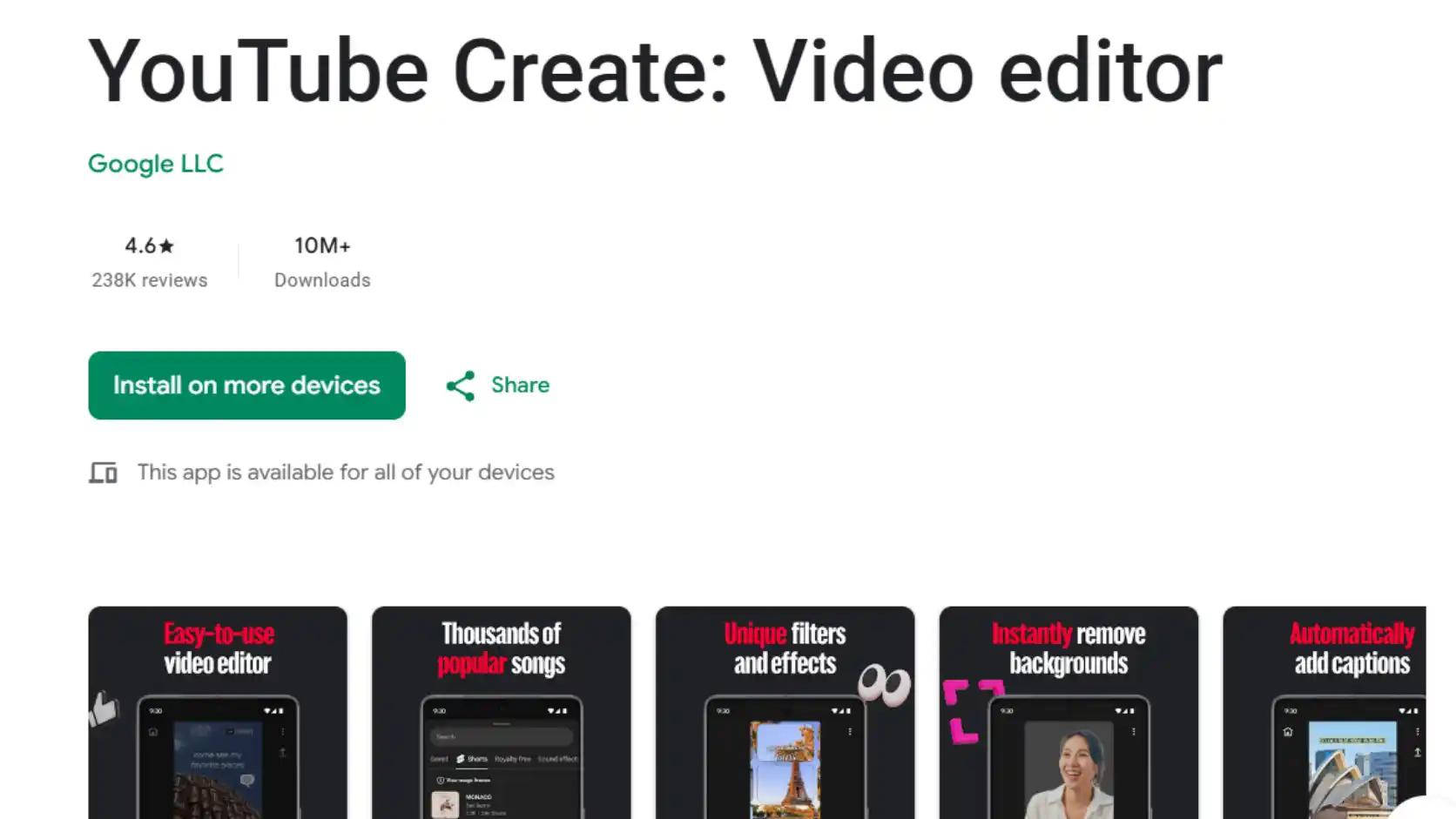
YouTube Create is the official video editing application developed by Google for YouTube creators. It helps users create and edit videos directly from their smartphones.
Whether you are starting a YouTube channel, producing Shorts, creating educational content or editing travel videos, YouTube Create provides several useful tools in a beginner-friendly interface.
The application includes video trimming, transitions, music, sound effects, voiceovers, automatic captions, filters, animated text and other editing features.
It also includes AI-assisted creation features in supported regions and versions, making it an interesting option for creators who want to simplify their editing workflow.
YouTube Create App – Download
Developer: Google LLC
Platform: Android and iOS (supported devices)
Cost: Free to download
Best for: YouTube Shorts creators, vloggers, educational channels, beginners and YouTube content creators.
What Are the Important Features of YouTube Create?
1. Easy Video Editing Tools
YouTube Create makes it easy to combine video clips, photos and audio into one project.
You can:
- Trim and split video clips.
- Crop and rearrange footage.
- Adjust video speed.
- Add transitions between scenes.
- Combine multiple video and audio tracks.
- Make adjustments to your footage before exporting.
These tools are useful for creating everything from short promotional videos to longer personal vlogs.
2. Automatic Captions and Subtitles
Automatic captions help convert spoken words into subtitles. This is useful for educational videos, tutorials, product demonstrations and Shorts.
You can review the captions and make corrections before publishing. Language availability may vary.
3. Royalty-Free Music and Sound Effects
One useful feature of YouTube Create is its built-in music and sound effects library.
You can explore available audio, add background music, adjust volume and use beat matching to synchronise video clips with the soundtrack.
There is also an option to record your own voiceover directly inside the application.
4. Background Noise Removal
Sometimes, a good video recording can be affected by unwanted background noise. YouTube Create includes an audio cleanup tool to help reduce distracting sounds.
This is useful for people recording voiceovers, tutorials, outdoor videos and interviews using a mobile phone.
5. Background Removal and Chroma Key
The cut-out effect and chroma key features can help remove or replace video backgrounds where supported.
For example, creators can experiment with different backgrounds for educational videos, presentations and creative content.
6. Filters, Effects and Animated Text
YouTube Create provides different visual tools to improve the appearance of your videos.
- Customisable filters.
- Colour and brightness adjustments.
- Animated text effects.
- Stickers, GIFs and emojis.
- Transitions and visual effects.
- Video speed adjustments.
These tools make it easier to create videos with a consistent visual style.
7. AI Features in YouTube Create
YouTube Create has expanded beyond traditional editing with AI-assisted creation tools. These features can help creators turn raw footage or creative ideas into video content.
Depending on your country, device and app version, available AI features may include:
- Edit with AI: Turn selected video clips and photos into an initial video draft with music, captions and other editing elements.
- AI video generation: Create video content using text prompts and reference images in supported regions.
- AI image generation: Generate visual assets using prompts and reference images where available.
- AI video remix: Experiment with existing AI-generated video content and create your own variation where supported.
The Edit with AI workflow can help reduce the time required to assemble an initial draft. You can then review the result, change the music or voiceover, adjust clips and make other manual improvements.
How to Use YouTube Create as a Beginner – Step-by-Step Guide
Here is a simple tutorial for creating your first video using YouTube Create.
- Install YouTube Create: Download the application from Google Play Store or Apple App Store.
- Open the app: Start the application and follow the available setup instructions.
- Start a new project: Choose the video clips and photos you want to edit.
- Arrange your footage: Place your clips in the correct sequence.
- Trim and split: Remove unwanted sections and adjust the length of each clip.
- Add transitions: Choose transitions to connect scenes smoothly.
- Include background music: Select suitable audio from the available library.
- Record voiceover: Add your own narration if your video needs an explanation.
- Add captions: Generate automatic subtitles where supported and correct the text.
- Apply filters and effects: Adjust colours, add text and use suitable creative elements.
- Preview the video: Check the complete video before exporting.
- Export your content: Download the finished video or upload it directly to your YouTube channel.
How to Use Edit with AI in YouTube Create
If the Edit with AI feature is available on your device, you can use it to create an initial video draft from your selected footage.
- Open YouTube Create.
- Choose the available Create Shorts or Edit with AI option.
- Select your video clips and photos.
- Choose available options such as music, captions and voiceover.
- Preview the automatically assembled video.
- Open the editing controls to make changes to the result.
- Export the video when you are satisfied with the final version.
- Download it or publish it on YouTube.
Feature limits, supported clip lengths and available languages can vary. Follow the instructions displayed in your version of the app.
Templates in YouTube Create
Templates are useful when you want to create videos quickly without building every scene manually.
YouTube Create offers built-in customisable templates that can help you arrange your footage into a structured video.
Templates can be useful for:
- YouTube Shorts.
- Travel and lifestyle videos.
- Product showcase videos.
- Educational content.
- Personal vlogs.
- Event highlights.
- Promotional content.
Select a suitable template, add your footage, customise the text and review the final result before publishing.
Benefits of YouTube Create for YouTube Creators
- Beginner-friendly editing: No advanced editing experience is required for basic projects.
- Shorts creation: Edit vertical videos for YouTube Shorts.
- Voiceover recording: Explain your content using your own narration.
- Audio tools: Add music and sound effects and improve audio quality.
- AI assistance: Use supported AI features to simplify parts of video creation.
- Multiple formats: Resize videos for portrait, landscape and square formats.
- Direct publishing: Upload your finished video to your YouTube channel.
- High-resolution export: Supported versions offer exports up to 4K and frame rates up to 60 fps.
3. Instagram Edits vs YouTube Create – Complete Comparison
Both applications are useful, but they have different strengths. Instagram Edits is closely connected with Instagram’s Reels creation workflow, while YouTube Create is designed around YouTube video creation and publishing.
| Features | Instagram Edits | YouTube Create |
|---|---|---|
| Developer | Instagram / Meta | Google / YouTube |
| Pricing | Free to download | Free to download |
| Android | Yes | Yes, supported devices |
| iOS | Yes | Yes, supported devices |
| Video trimming | Yes | Yes |
| Multi-track editing | Yes | Yes |
| Automatic captions | Yes | Yes, selected languages |
| Templates | Yes | Yes |
| AI features | AI-powered effects and creative tools | AI editing and generative tools in supported regions |
| Teleprompter | Yes | Check current app features |
| Voiceover | Yes | Yes |
| Background removal | Available creative cut-out tools | Cut-out and chroma key tools |
| Music and sound effects | Yes | Yes |
| Creator insights | Instagram Reel insights for supported sharing workflows | Use YouTube Studio for channel analytics |
| Direct publishing | Instagram and Facebook | YouTube |
| Best suited for | Instagram Reels creators | YouTube creators and Shorts |
4. Which Is the Best Free Video Editor App for Beginners in 2026?
The best application depends on the type of videos you want to create.
Choose Instagram Edits If:
- You regularly create Instagram Reels.
- You manage social media accounts for businesses.
- You want a teleprompter for recording videos.
- You need creative effects and templates.
- You want Instagram-related creator insights.
- You frequently create short-form promotional videos.
Choose YouTube Create If:
- You are starting a YouTube channel.
- You regularly publish YouTube Shorts.
- You create educational videos or tutorials.
- You need built-in voiceover and audio tools.
- You want to experiment with AI-assisted editing.
- You prefer publishing directly to YouTube.
Can You Use Both Applications?
Absolutely! You don’t have to choose only one application.
For example, you can use Instagram Edits for Instagram Reels and YouTube Create for YouTube Shorts. You can also export your original video and use it on different social media platforms, provided you have the necessary rights to the footage, music and other content.
Using two editing applications can help you understand different editing techniques and choose the right tools for each project.
5. Video Editing Tips for Instagram Reels and YouTube Shorts
Downloading an editing app is only the first step. Creating useful and interesting videos also requires good planning and editing techniques.
1. Start With a Strong Opening
The opening seconds of your video should clearly communicate what viewers can expect. Start with an interesting question, an important visual or a useful piece of information.
2. Keep Your Video Focused
Avoid adding unnecessary scenes. Remove repeated footage and make sure every clip contributes to your main message.
3. Use Captions
Captions make spoken information easier to follow. Use readable fonts, appropriate colours and suitable text placement.
4. Maintain Consistent Branding
If you create videos for a business, use consistent colours, fonts and logo placement. This helps viewers recognise your content.
5. Use Music Carefully
Choose audio that suits your video. Check music licensing and platform restrictions, particularly when publishing promotional or commercial content.
6. Avoid Excessive Effects
Transitions, filters and animations can improve a video, but using too many effects may distract viewers. Keep your editing clean and easy to understand.
7. Review Before Publishing
Always watch your final video before posting. Check the spelling, captions, sound levels, video quality and overall presentation.
6. Final Verdict – Which Free Mobile Video Editor Should You Download?
In 2026, both Instagram Edits and YouTube Create are useful options for mobile video creators who want to edit videos without investing in expensive desktop software.
Instagram Edits is a strong choice for Instagram Reels creators, social media marketers, influencers and businesses that regularly publish short-form content.
YouTube Create is a useful choice for YouTube creators, vloggers, educators and Shorts publishers who want video editing, audio tools and AI-assisted creation features in one application.
Our suggestion: Try both apps and explore their features. Start with basic editing, learn how to use captions and transitions, and gradually experiment with templates and AI tools.
You don’t need expensive equipment to start creating useful video content. Your smartphone, a good idea and the right editing workflow can be enough to begin.
Frequently Asked Questions (FAQs)
1. Which is the best free mobile video editor app in 2026?
Instagram Edits and YouTube Create are two useful free-to-download mobile video editors. Edits is particularly suitable for Instagram Reels, while YouTube Create is designed for YouTube videos and Shorts.
2. Is Instagram Edits completely free?
Instagram Edits is free to download. Its available features and any future changes to pricing or access should be checked through the official app listing.
3. Is YouTube Create free to use?
YouTube Create is available as a free-to-download video editing application from Google. Check the official store listing for current availability and device requirements.
4. Can beginners use Instagram Edits?
Yes. Beginners can start by importing video clips, trimming footage, adding text, using templates and generating captions. Advanced editing features can be explored gradually.
5. Does YouTube Create have AI features?
Yes. YouTube Create includes AI-assisted editing and generative creation tools in supported regions. Some features may have regional, language or device restrictions.
6. Can I create Instagram Reels using YouTube Create?
Yes. You can edit vertical videos using YouTube Create and export them for Instagram Reels, subject to the applicable music, content and platform requirements.
7. Can I use Instagram Edits for YouTube Shorts?
Yes. Instagram Edits allows you to export videos for use on other platforms. Make sure you have the appropriate rights to any music or other content included in the video.
8. Which app is better for video templates?
Both applications provide template-based editing options. Instagram Edits is particularly interesting for Reels-style creative templates, while YouTube Create offers customisable templates for YouTube content.
9. Can I create videos without a computer?
Yes. Both applications are designed for mobile video creation. You can record, edit and export supported video projects directly from your smartphone.
10. Do these apps guarantee more views or followers?
No. Editing applications cannot guarantee views, followers or engagement. Video performance depends on factors such as content quality, audience interest, presentation and distribution.
Official App Download Links and Resources
Use the following official links to explore and download the applications:
- Instagram Edits – Official Website
- Instagram Edits – Android Download
- Instagram Edits – iPhone Download
- YouTube Create – Android Download
- YouTube Create – iPhone Download
- YouTube Official Help Centre
About TipsAndIdea.in: TipsAndIdea.in shares useful information, technology updates, mobile applications, digital tools, online resources and practical guides to help readers discover and learn about useful digital solutions.
Disclaimer: App features, supported devices, AI tools, pricing, language availability and regional access may change over time. Information in this article is provided for educational purposes. Please refer to the official app listings and developer documentation for the latest details. TipsAndIdea.in is not affiliated with Instagram, Meta, Google or YouTube.